Let’s be honest: Linux is powerful, bFinding a reliable, high-performance, and **Cheap Windows VPS Germany** can feel like searching for a needle in a haystack. Most providers either charge a fortune for Windows licensing or give you a sluggish, shared environment that lags every time you move the mouse.
Let’s be honest: Linux is powerful, but sometimes you just need a familiar desktop. Maybe you need to run MetaTrader for Forex trading 24/7, keep an SEO tool running continuously, or simply want a secure browsing environment with a Start Menu.
If you are hunting for a **Cheap Windows VPS Germany** that actually delivers performance, you are in the right place. At SarvHost, we use KVM virtualization to give you a private, dedicated Windows environment with full Administrator access.
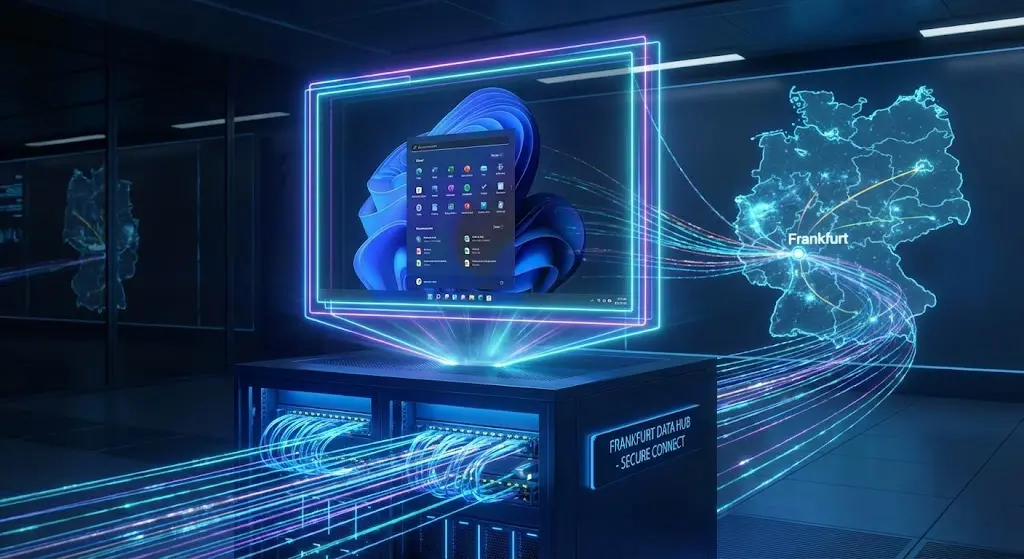
In this guide, I’m going to show you exactly how to deploy your own remote desktop in Frankfurt in under 15 minutes.
Why Choose a Windows VPS in Germany?
You might be wondering, “Why does location matter?” If you are looking for a **Cheap Windows VPS Germany**, you are likely prioritizing two things: Privacy and Connectivity.
- Strict Privacy Laws: Germany has some of the strictest data privacy laws in the world. Your data is safer here than in many other jurisdictions.
- Central Connectivity: Frankfurt is the digital heart of Europe. Hosting your RDP here means ultra-low latency connections to London, Amsterdam, and New York. This is crucial for traders who can’t afford lag.
Step 1: Choosing the Right Engine (Crucial!)
Unlike Linux, Windows is a “heavy” operating system. It needs resources to draw the graphical interface (GUI). If you try to run Windows Server 2019 on 1GB of RAM, you are going to have a bad time. It will freeze.
To get the best experience from your **Cheap Windows VPS Germany**, we highly recommend choosing a plan with at least 4GB of RAM and 2 CPU Cores. Our NVMe storage ensures that booting up and opening applications happens instantly.
Pro Tip: Don’t cheap out on RAM for Windows. Our “Professional” plan is the sweet spot for a smooth, lag-free RDP experience.
Step 2: Ordering Your Server
The process is straightforward. We don’t hide anything behind complex menus.
- Go to our Pricing Page.
- Select a plan with 4GB RAM or more.
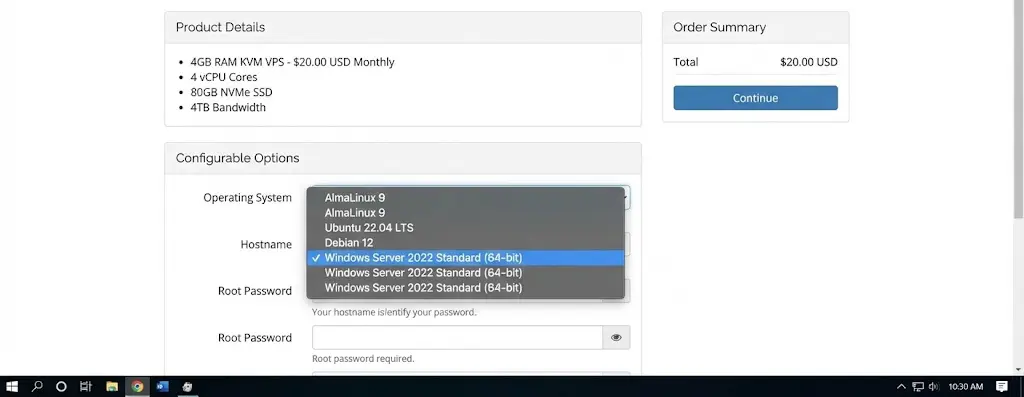
- On the configuration page, look for “Operating System”. Select Windows Server 2019 or 2022 Standard.
- Complete the checkout. We accept Crypto (Bitcoin, USDT) and PayPal.
Once paid, our automated system starts building your server. Because Windows is a large OS, give it about 15-20 minutes to fully install and update drivers.
Step 3: Connecting via Remote Desktop (RDP)
Once the setup is done, check your email. You will receive an IP address, the username Administrator, and a password.
You don’t need to download any sketchy software. The tool is already on your PC.
If you are on Windows:
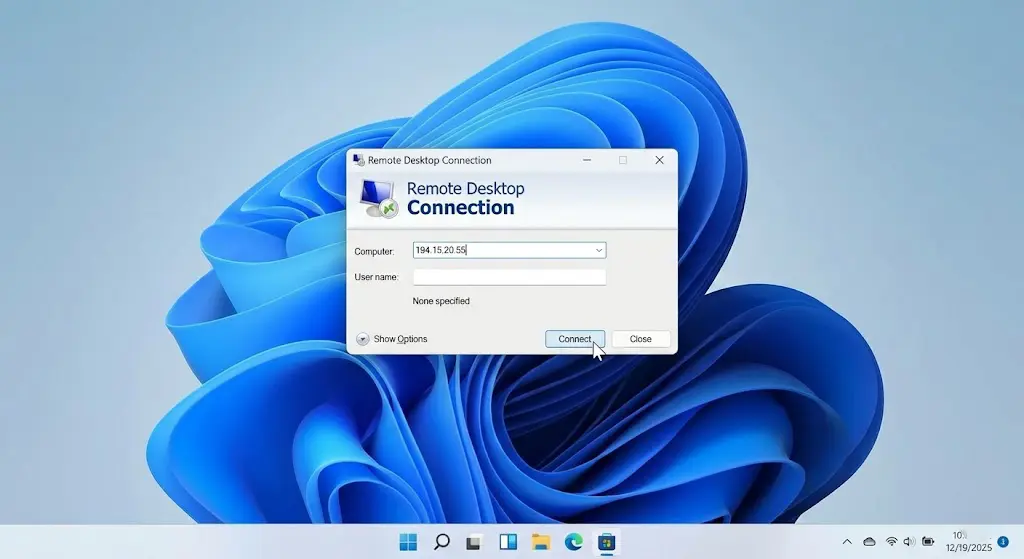
- Press the Start button and type “Remote Desktop Connection”.
- Enter the IP Address from the email.
- Click “Connect”.
- Enter your credentials (User: Administrator).
- Accept the security certificate warning (this is normal).
If you are on Mac or Mobile:
Download the official “Microsoft Remote Desktop” app from the App Store. It works exactly the same way.
What Can You Run on This VPS?
Since you have Full Admin Access, you are not restricted. It is literally your own computer. Our clients use their **Cheap Windows VPS Germany** for:
- Forex Trading: Running MT4/MT5 expert advisors (EAs) 24/7 without interruption. (Check our Dedicated IP guide for more on this).
- Social Media Bots: Automation tools for Instagram or TikTok that need to run around the clock.
- Web Browsing: Accessing region-locked content or secure banking from a German IP.
- SEO Tools: Running crawlers like Screaming Frog that take hours to finish.
Troubleshooting Common RDP Issues
Sometimes, things don’t go perfectly. Here are quick fixes for common problems:
1. “Remote Desktop can’t connect to the remote computer”
If you see this error immediately after buying, wait 5 more minutes. Windows takes time to boot up for the first time and configure the network. If it still fails, check the SarvHost client area to ensure the VPS status is “Online”.
2. The screen is black after login
This happens if the internet connection is slow. In your Remote Desktop app, go to “Display” settings and lower the “Color Depth” to 16-bit. This makes the connection much faster.
Final Thoughts
You don’t need to spend $50 a month for a dedicated server just to run a few apps. By choosing a high-quality KVM slice, you get a **Cheap Windows VPS Germany** that performs like a beast.
Ready to launch your 24/7 workstation? Click below to deploy instantly.
🖥️ Get Your Windows KVM VPS Nowut